How Family Tasks Works: A 10-Minute Setup Tour
Quick answer: Family Tasks works in four steps. A parent installs the app on their iPhone, adds each child, and plans one week of chores and routines on a single dashboard. Each child then opens their own version of the app and sees only their tasks, streaks, and reminders. After the first week, parents get an AI report showing what each child actually did on their own. Setup takes about ten minutes.
This is the full tour, with real screenshots from the app. I built Family Tasks, so this page is unapologetically product-forward — if you want to compare us against other options first, start with our honest ranking of the 10 best chore apps and come back.
What you need before you start
- A parent iPhone. Family Tasks is iOS-only right now (more on Android in the FAQ below).
- A device for each child who will use their own app — their iPhone, or a hand-me-down iPhone on Wi-Fi. Kids can also start on your phone and move to their own device later.
- About ten minutes. Three for family setup, five for the first week's plan, two to hand the kid app over. The AI report requires zero minutes — it arrives on its own.
| Step | What you do | Time |
|---|---|---|
| 1. Add your family | Create a profile for each child | ~3 min |
| 2. Plan the first week | Pick a routine template, adjust, assign | ~5 min |
| 3. Hand over the kid app | Child opens their own app, sees their list | ~2 min |
| 4. First AI report | Nothing — it lands after the first week | 0 min |
Step 1 — Add your family (about 3 minutes)
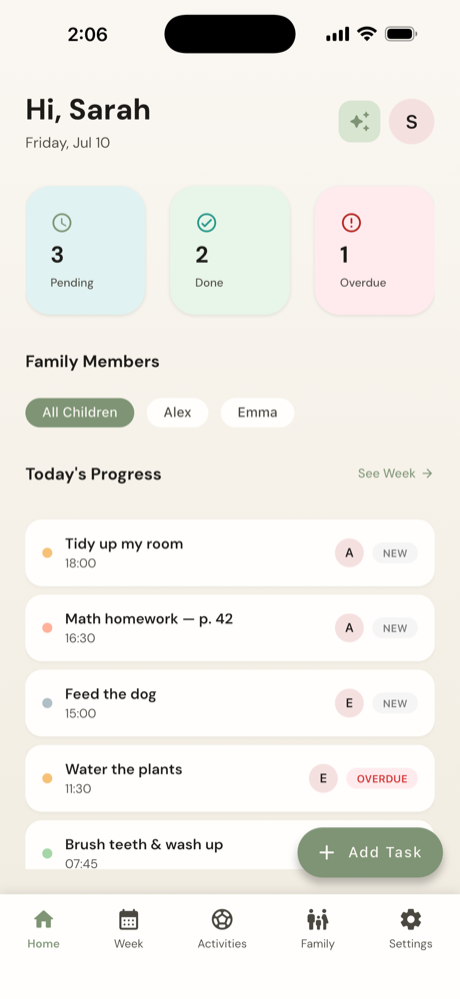
After you download Family Tasks and create your parent account, the first job is adding the people. Create a profile for each child — name, age, and an avatar they'll recognize as theirs. Age matters here: it's how the app knows which chores are reasonable to suggest for a 6-year-old versus a 12-year-old.
Once your kids are in, the parent home screen becomes your command center: every child, every task, and today's completion status in one view. This is the screen you'll glance at each evening instead of interrogating each kid individually. If both parents want access, both connect to the same family — you see the same dashboard and the same history.
One deliberate design choice: children never see each other's full dashboards or your parent controls. Each child's world is their own list. That separation is the core of the whole product, and it's why the next two steps matter.
Step 2 — Plan the first week (about 5 minutes)
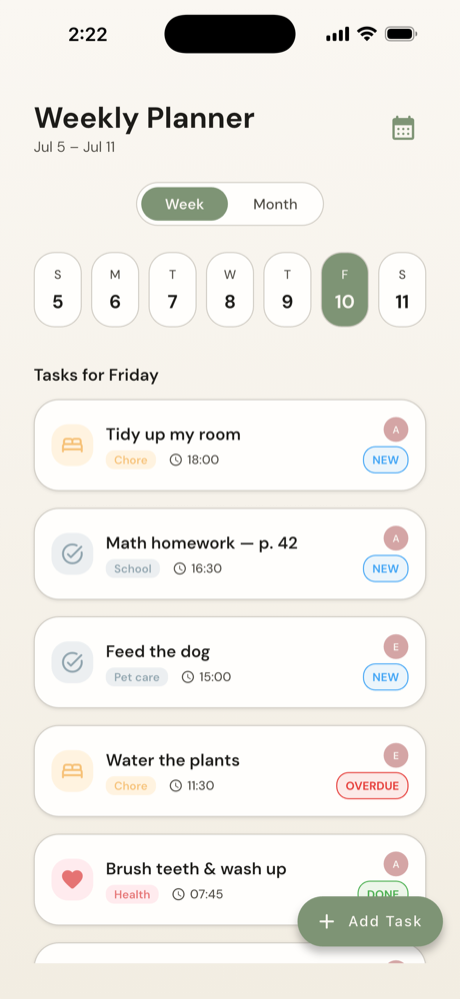
This is where most of your ten minutes goes, and it's the step that saves you the other 10,070 minutes of the week. Open the week planner and build each child's schedule once — recurring chores land on their days automatically after that.
The fastest start is the morning routine template: a ready-made sequence — get dressed, make the bed, brush teeth, pack the school bag — that you adjust to your household in a few taps. Morning routines are the best first test of any chore system because they repeat daily, so your child gets five practice runs in week one, and the win is immediate: calmer school mornings. (If mornings are your family's main battlefield, our morning routine guide goes deep on the sequence itself.)
Beyond the template, add two or three real chores per child — not ten. Under-planning the first week is a feature, not a cop-out: a 7-year-old who completes three tasks five days running has built something; a 7-year-old staring at a wall of twelve chores has learned to ignore the app. If you're unsure what's fair to expect at each age, our chores-by-age guide breaks it down from toddlers to teens.
The planner also holds each child's activities — soccer practice, music lessons — with coach contact details attached, so the week you're looking at is the child's actual week, not just the chores part of it.
Step 3 — Your kid opens THEIR app (about 2 minutes)
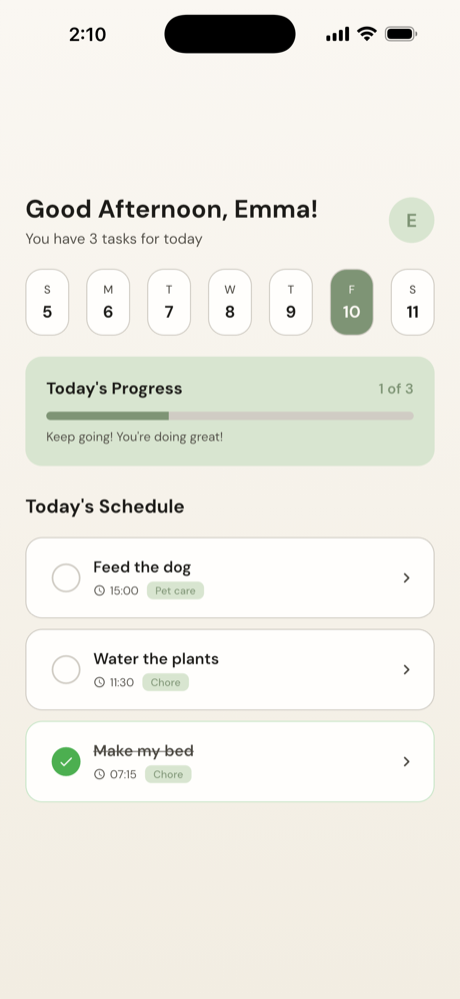
Now the handover — the part kids actually care about. Your child opens Family Tasks on their own device and signs in to their profile. What they see is nothing like your dashboard: it's their day only. Today's tasks, big friendly check-offs, and their streak.
Two things happen psychologically at this moment, and they're the reason this app exists:
- Ownership. The list belongs to the child, on their device, in their app. Checking off "make bed" is something they do, not something done to them. Kids rarely resist the chores themselves — they resist being told. The app quietly removes the "being told" part.
- The app becomes the nag. Reminders go to the child's device at the times you set. When the 4 p.m. homework reminder fires, it comes from the app — not from you. That's a small change with an outsized effect on the parent-child relationship, and it's especially powerful for distractible kids; we wrote separately about chore apps for kids with ADHD and why externalized reminders work better than parental repetition.
Expect your child to spend the first two minutes checking things off just to watch them complete. Let them. That's the hook doing its job.
Step 4 — Your first AI weekly report (0 minutes)
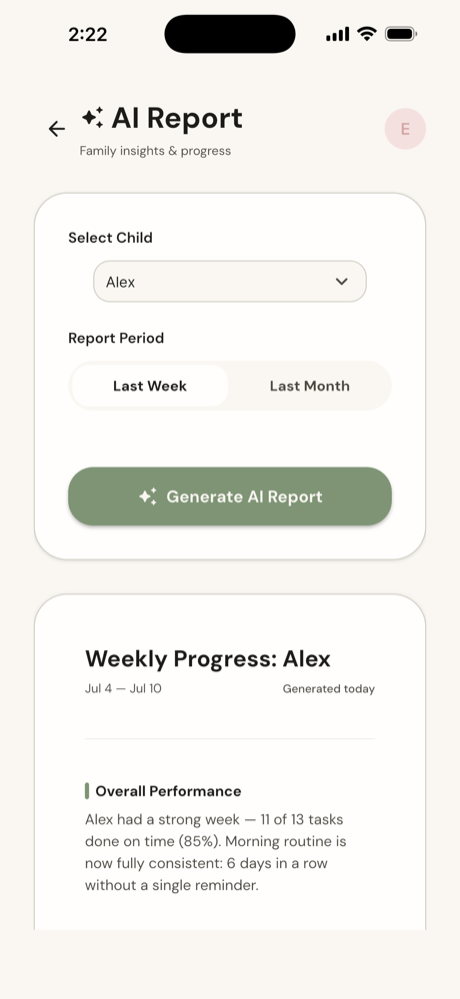
After the first week, Family Tasks sends you something no other chore app does: an AI-written progress report for each child. It summarizes what got done on time, what routinely slipped, which days were hardest, and how independently your child is operating — this week versus previous weeks.
The report exists to change when you talk about chores. Without it, feedback happens in the moment of failure ("you didn't take out the trash — again"), which is nagging. With it, feedback happens once a week, over data, in a calm moment: "I noticed Thursdays are rough — what's going on Thursdays?" You coach instead of police. Monthly reports zoom out further and show the trend that daily life makes invisible: is my child actually becoming more independent?
The reports are part of the premium subscription; the free tier covers everything else in this tour — family profiles, the week planner, the kids' own app, and reminders.
What Family Tasks deliberately doesn't do
An honest tour includes the edges. Family Tasks has no debit card and no built-in money payouts — if you tie chores to allowance, you track the payout yourself (or decide not to pay for chores at all; we lay out both sides in allowance vs. rewards). There's no shared grocery list or family calendar for adults — it's a kids' habit tool, not a household command center. And it's iPhone-only for now. If any of those are dealbreakers, the comparison guide points you to apps that make the opposite trade-offs.
The realistic first week: expect a novelty spike (days 1–3), a dip (day 4–5, when checking things off stops being new), and a recovery if the reminders and streaks are doing their job. Don't judge the system until the second AI report — that's when you're looking at habit, not novelty.
FAQ
What languages does Family Tasks support?
Six: English, German, Spanish, French, Hindi, and Russian. Each family member can run the app in their own language.
How much does Family Tasks cost?
Free to download and use for core chore planning and the kids' own app. A premium subscription unlocks extras like the AI weekly and monthly reports. The whole setup tour above works on the free tier.
What ages is Family Tasks for?
Roughly 5 to 14. Ages 5–7 usually start with a parent nearby; 8+ run their own list independently. See chores by age for what to assign at each stage.
Is Family Tasks on Android?
Not yet — as of August 2026 it's iPhone-only, and every user in the family needs an iOS device. Android support is the most-requested item on our roadmap, but we won't promise a date we can't keep.
Ten minutes tonight, calmer mornings by Friday
Add your kids, plan one week, hand over the kid app. Free to start — the first AI report arrives after week one.
Download Family TasksFurther reading: Kids chores by age · Morning routine for kids · 10 best chore apps 2026 · OurHome alternative